

Canvas
Canvas is the learning management system (LMS) used at UNCG. Canvas simplifies teaching and learning by connecting the most frequently used digital tools in one place. Canvas provides a great place to create, organize, and implement course content, assignments, quizzes, discussions, files, and more.
On this page:

How to Access
Faculty and students can login to Canvas using their iSpartan ID.
Downloads
Instructor Mobile App
Student Mobile App
Guides/Tutorials
Instructor Guides
Getting Started
- Canvas at UNCG
- How do I view my Canvas Course?
- How do I use the Dashboard?
- How do I use the Course Home Page?
- How do I set my Canvas Notification Preferences?
- How do I use the Calendar?
- How do I ensure my class is student-ready?
Creating and Maintaining your Course
- How do I add items to Module
- How do I publish Modules?
- How do I edit a page in a course?
- How do I copy course content from another course?
- How do I manage Course Navigation links?
- How do I change the Course Home Page?
- How do I publish a course?
- How do I set up e-reserves?
- How do I use Canvas Studio?
- How do I integrate OneDrive with Canvas?
- How do I add videos from OneDrive to Canvas?
- How do I cross-list course sections?
- How do I add UNCG Library Resources (eReserves and Library Guides)?
Assignments
- What assignment types can I create in a course?
- How to create an online assignment?
- How to create a discussion?
- What quiz types can I create in a course?
- What are some best practices for Classic Quizzes?
- What options can I set in a quiz?
- How do I create a Multiple Choice quiz question?
- How do I export quiz content from Canvas for use in Respondus?
- How do I use Turnitin in Canvas?
Grades
- How do I use the Canvas Gradebook?
- How do I use SpeedGrader?
- How do I hide grades?
- How do I post grades?
Additional Resources
Student Guides
Getting Started
- How do I view my Canvas Course?
- Why can’t I see my Canvas course?
- How do I use the Dashboard?
- How do I use the Course Home Page?
- How do I set my Canvas notification preferences?
- How do I change my preferred name in Canvas?
- How do I use the Calendar?
Assignments and Guides
- How do I submit an online assignment?
- How do I reply to a discussion?
- How do I take a quiz?
- How do I view my grades in a current course?
- How do I submit a OneDrive file to an assignment?
- What is Canvas Student ePortfolios Guide?
- How do I use Canvas ePortfolios?
- How do I use Turnitin in Canvas?
Additional Resources
FAQ
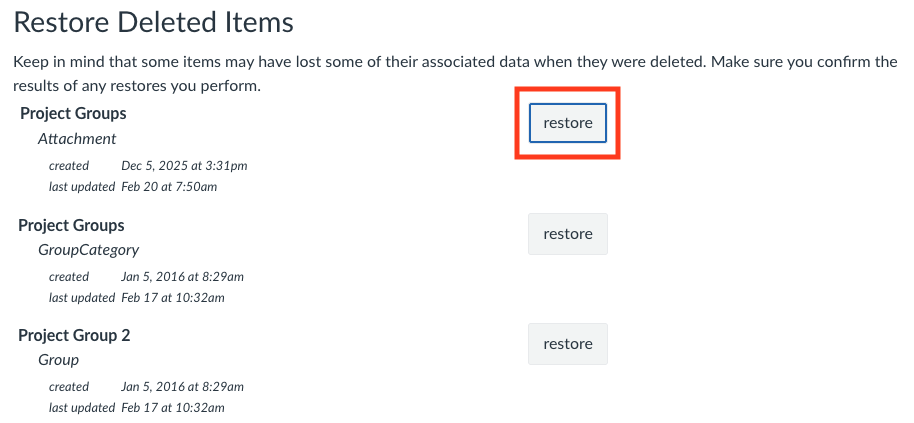
Previously saved content can be restored if it gets accidentally deleted. This includes assignments, classic quizzes, pages, etc.
Note: Content that did not get saved prior to you leaving the page cannot be restored. Syllabus content cannot be restored. Page changes that have been saved multiple times can be rolled back to a previous version using the page history.
To restore deleted content:
- Go to the course homepage.
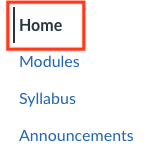
- In the url type /undelete at the end of the address.

- Click Restore next to the name of the content you would like to restore.
Instructor Training
The Canvas Quick Start instructor training is a self-paced series of modules designed to help teachers learn how to use the Canvas Learning Management System (LMS) effectively in brick-and-mortar classrooms and online learning environments.
Group, one-on-one, or virtual sessions are available to faculty on workshops.uncg.edu. If you cannot find what you’re looking you can request training.
Technical Support
ITS 6-TECH Service Desk
1400 Spring Garden Street Greensboro, NC 27412
Email: 6-TECH@uncg.edu
Technical Support: (336) 256-TECH (8324)
Canvas Support Documentation
Privacy and Accessibility
Last Updated: October 16, 2025