Turnitin
Turnitin is plagiarism detection software that integrates directly with Canvas and scans student work for matched text by comparing the work to a large database of student work, publications, and materials on the internet.
On this page:

How to Access
Instructors
All instructors have access to use Turnitin inside of Canvas. Instructors can enable Turnitin within a Canvas assignment’s settings.
Creating an assignment in Feedback Studio using Canvas Plagiarism Framework
Students
When an instructor uses Turnitin through a Canvas assignment students will have access to the application. Students can access similarity reports if they are enabled by their instructor.
Viewing your Similarity Report with Canvas Plagiarism Framework
Guides/Tutorials
Turnitin offers user guides to help you get started. Below are helpful articles for both instructors and students:
Instructors
FAQ
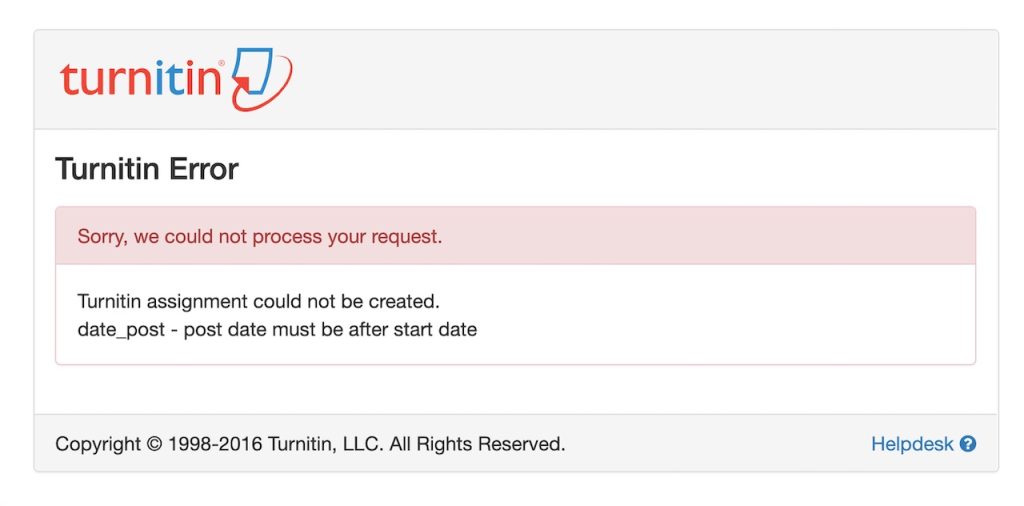
If you see this message, you’ll need to reconfigure your Canvas and Turnitin assignment dates.
- From the Canvas assignment page, click the Edit Assignment Settings button.
- Write down or take a screenshot of the dates from the assignment as you will need to restore them.
- Remove all dates from the Canvas assignment (click clear for each) and click save.
- Reload the Canvas assignment. You will now see the Turnitin window below the assignment instructions.
- Click the gear in the upper right of the Turnitin window.
- Change the dates inside the Turnitin window to the correct dates and save the Turnitin settings.
- Click the Edit Assignment Settings button, put the dates back in, and click Save.
Turnitin updated their Canvas integration in December 2025 causing assignments created using the old Turnitin external tool to redirect users to the course home page. To update your assignment to the new integration follow the steps below:
- Change the submission type. In your assignment settings, switch from External Tool to File Submission.
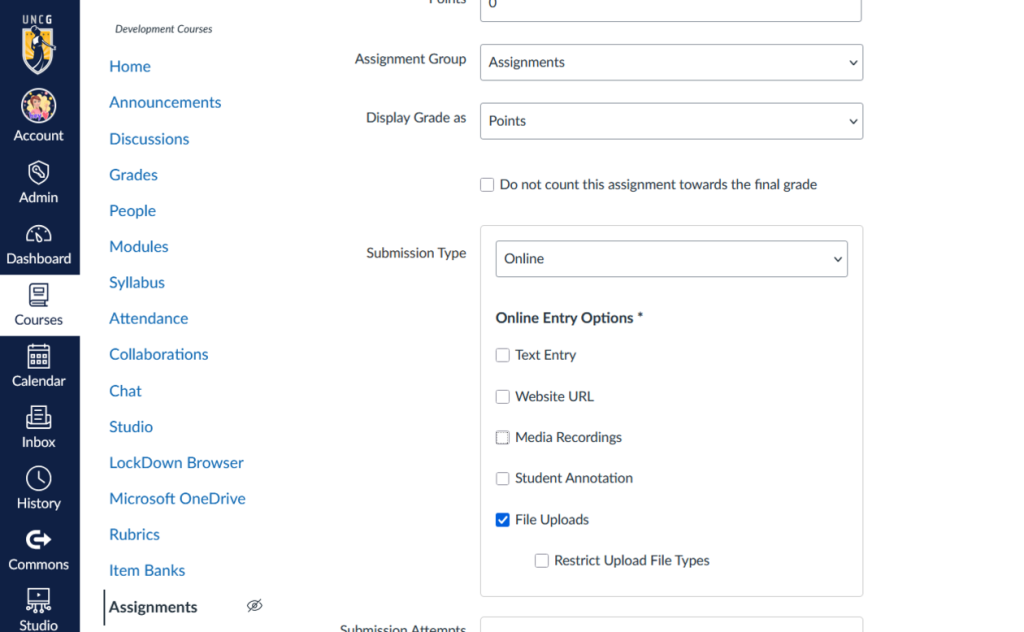
- Enable the Plagiarism Framework. In the same assignment settings, enable Plagiarism Review and select Turnitin.

Instructor Training
Group, one-on-one, or virtual sessions are available to faculty on workshops.uncg.edu. If you cannot find what you’re looking you can request training.
Technical Support
ITS 6-TECH Service Desk
1400 Spring Garden Street Greensboro, NC 27412
Email: 6-TECH@uncg.edu
Technical Support: (336) 256-TECH (8324)
Turnitin Support Documentation
Privacy and Accessibility
Last Updated: October 16, 2025