
YuJa Panorama

YuJa Panorama is a digital accessibility tool integrated with Canvas that helps instructors identify, understand, and remediate accessibility issues in course content. It scans Canvas pages and course files, provides accessibility reports, supports some inline remediation, and generates alternative formats for students. Panorama helps streamline accessibility improvements and supports more inclusive learning experiences, but instructors are still responsible for reviewing content and addressing issues that cannot be corrected automatically.

On this page:

yuja panorama logo

How to Access

Instructors

Panorama is integrated and enabled for all Canvas courses automatically. Instructors do not need to turn on or enable Panorama for their course or content. You can access an accessibility report for each item in your course or access the full course report.

  1. Open Panorama for a specific Canvas item
    • In your course, go to a page or file you want to check for accessibility.
    • Look for an accessibility icon next to the file or page title. icons: green circle, yellow triangle, red pentagon, gray circle with strikethrough

    • Click the icon to open the Accessibility Report for that item.
  2. View the overall course accessibility
    • In the left navigation, click Panorama.
    • This opens the Course Report, which shows your course’s overall accessibility score and highlights areas needing improvement.

Students

When enabled, students can access Panorama’s alternative formats for Word, PowerPoint, Excel, and PDF files.

  1. Access Alternative Formats for a specific item
    • In your course, go to a page or file you want to generate as an alternative format.
    • Look for the blue Accessibility icon accessibility icon next to the file or page title.
    • Click the icon to open the Accessibility Report for that item.
    • Select the alternative format you’d like to generate and follow the prompts.

NOTE: Alternative formats may not be available for every item in your course or may not always display correctly when they are available. If you run into these issues, try a different file type or use the original file.


Guides/Tutorials

Instructors

Students


FAQ

YuJa Panorama identifies potential barriers, provides accessibility reports, and, in many cases, offers guided remediation options to help instructors improve accessibility. Common file types scanned by Panorama include: 

  • Word (.doc, .docx)  
  • PowerPoint (.ppt, .pptx)  
  • Excel (.xls, .xlsx)  
  • PDF  
  • Canvas Items (Pages, Discussions, Assignments as HTML)
  • Canvas Studio videos (if they are part of the course content Panorama is configured to monitor)

For more information on accessibility issues that can be resolved with Panorama read Panorama’s Accessibility Checklist

Panorama can identify accessibility issues in many types of Canvas content, but some content is outside its scope. Panorama does not scan: 

  • Content provided through external tools or integrations such as digital textbooks or publisher content. 
  • Files stored outside of Canvas including files hosted in OneDrive, SharePoint, Box, or on external websites. 
  • Videos hosted on external platforms. While Panorama can indicate when a YouTube video uses automatically generated captions, it does not evaluate the accuracy or quality of those captions. 

When using content from external tools, websites, or storage platforms, instructors should review accessibility considerations separately, as Panorama may not be able to analyze that content. 

For more information on accessibility issues that can be resolved with Panorama read Panorama’s Accessibility Checklist

Panorama can identify many accessibility issues and provides remediation tools for some content types. However, not all issues can be corrected automatically. Instructors should review accessibility reports and make decisions about content such as meaningful alternative text, document structure, link descriptions, table organization, and instructional context.

To learn more about how to make content accessible, explore the Accessibility How-To Guides

When Panorama identifies accessibility issues in a file, review the file’s Accessibility Report to understand what needs attention. Depending on the file type and issue, Panorama may allow you to make some corrections directly within Canvas. For issues that cannot be fixed inline, download and edit the original file using the appropriate software (such as Microsoft Word, PowerPoint, or Adobe Acrobat), then replace the file in Canvas with the updated version. After the file is reuploaded, Panorama will rescan it and update the accessibility results 

Learn more on how to update files by reading the following resources: 

Scores

Panorama assigns accessibility scores to help you identify accessibility issues and opportunities for improvement. Students do not see these scores and only have access to alternative formats.

Use accessibility scores as a guide, not a grade. Scores provide an overall indication of accessibility and can help you prioritize remediation efforts. A high score does not guarantee full accessibility, and a lower score does not necessarily mean content is unusable.

Aim for a score of 85% or higher (green) on Canvas pages and instructor-created files, with no unresolved Severe or Major issues. For third-party course content, aim for 70% or higher with no unresolved Severe or Major issues. A perfect score is not required.

Remember that YuJa Panorama is a tool designed to help identify and address accessibility issues. Its scores are intended as guidance and do not reflect on you or your teaching. For more information, see the Suggested YuJa Panorama Accessibility Metrics guide. If you have questions about a score or need assistance resolving issues, contact accessibility@uncg.edu.
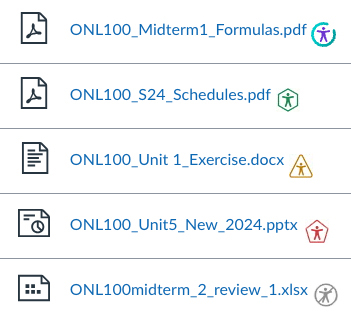
Canvas file list showing YuJa Panorama accessibility score icons for course files.
Panorama accessibility score icons for course files

Icons

Panorama will generate scores as icons for DOC, DOCX, PPT, PPTX, PDF, HTML, TXT, GIF, XLS, XLSX, ODT, ODP, ODS, RTF file types, and editable HTML pages. The icons will appear next to files and pages throughout a course and will provide access to accessibility information, remediation tools, and alternative formats.

IconDescription
Green hexagonAccessibility score greater than 85%
Yellow triangleAccessibility score between 70% and 85%
Red pentagonAccessibility score less than 70%
Purple timer counting downPending scan or unscanned document
Gray accessibility icon with backslashNot available (the document has not been scanned or cannot produce an accessibility score)
accessibility iconStudent-facing accessibility indicator indicating alternative formats are available
Accessibility Score Icons

Accessibility scores may not update immediately. Depending on the content type, you may need to refresh the report, revisit the file, or allow Panorama time to rescan the content.

YuJa Panorama can convert a wide range of file types into alternative formats, including both standard documents and scanned images. Original files are always available and unchanged. Alternative formats are optional and may not be perfect. They are meant to make content easier to read, listen to, or use with assistive technology, but some formats might not convert correctly.

When enabled for a course, Alternative Formats can include:

  • Source File: View the document in its original format, suitable for download viewing.
  • PDF: View the document in PDF format, suitable for both online and download viewing.
  • Text File: View the document in a pure text format without any formatting styles, suitable for both online and download viewing.
  • Immersive Reader: Allows for customizations to text preferences, grammar options, and reading preferences while following along with the audio playback.
  • Gradient Reader: Enhances visual word recognition when reading by providing a guiding color gradient.
  • EPUB: View the document in the ebook format, suitable for any ebook reader application.
  • Audio Podcast: Audio playback for documents, suitable for both online and download listening.
  • Language Translation: Translate a document automatically to over 100 languages, which can be downloaded
  • Math Formats: Convert documents containing math equations into LaTeX, Math Text (i.e. numbers and symbols to words), or MP3 files.
    • Latex: Convert documents into LaTeX document format.
    • Math Text: Convert documents into printed English, including numbers and symbols.
    • Math Audio: Convert documents to MP3.
  • MathML: Extract mathematical equations from documents and convert them into HTML files.
  • OCR Formats: Convert images with text into machine-encoded text that can be searched and read by screen readers.
    • OCR Overlaid Tagged PDF: Generate a tagged PDF that allows for selectable text overlaid on the original scanned document or image.
    • OCR Reconstructed DOCX: Generate a brand new DOCX file from scanned documents or images.
    • OCR Reconstructed Tagged PDF: Generate a brand new tagged PDF from the scanned document or image.
    • OCR Reconstructed HTML: Generate a brand new HTML file from scanned documents or images.
    • OCR Text: Recommended for those who’d like plain text, the OCR tool will extract and display text within images and GIFs as a TXT file.
    • OCR Audio: Extract text within images and GIFs into an MP3 text-to-speech audio player.
    • OCR Semantic Text: Converts scanned text into readable, structured text while preserving context and layout.
    • OCR Semantic Audio: Transforms scanned text into audio with natural intonation and emphasis, enhancing listening comprehension.
  • Braille: View the document in the braille grade 2 format, suitable for download viewing (a braille reader is required).

For more information on Panorama’s alternative formats read Accessing the Panorama Alternative Formats Menu.

Yes, instructors can disable alternative formats for a specific file and for the entire course.

Enable/Disable one or more Alternative Formats for an entire Course

  1. Select Panorama menu from the course menu.
  2. Select Configuration from the left-hand panel.
  3. Select General Settings.
  4. Scroll down the General Settings section and locate Alternative Formats Menu Options.
  5. Choose enable or disable specific Alternative Formats by selecting the enabled/disabled slider button.
  6. Navigate to the top of the Configuration > General Setting section and choose Save Changes.
alternative formats menu options with enabled/disabled slider buttons highlighted.

Disable Alternative Formats for a specific File

  1. Locate the file in your course and select the accessibility icon accessibility icon next to the item.
  2. Click/Tap the slider next to the option to hide alternative formats.
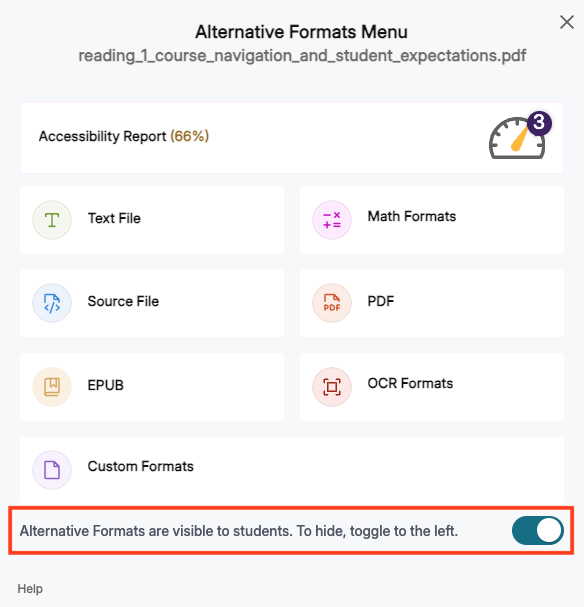
alternative format menu with show hide option for students button enabled

Instructors

Instructors see score-based icons, detailed reports, and remediation tools to improve accessibility. For more information read Getting Started with Panorama for Instructors in Canvas

Students

Students see only the blue alternative format access icon accessibility icon and no score details. Students do not see Panorama in the course navigation. For more information read Getting Started with YuJa Panorama for Students in Canvas

Yes. In the Canvas Page Editor, Panorama replaces the built-in Canvas accessibility checker icon. Clicking the Panorama icon opens an Accessibility Report for that page, where instructors can review accessibility issues and use available remediation options
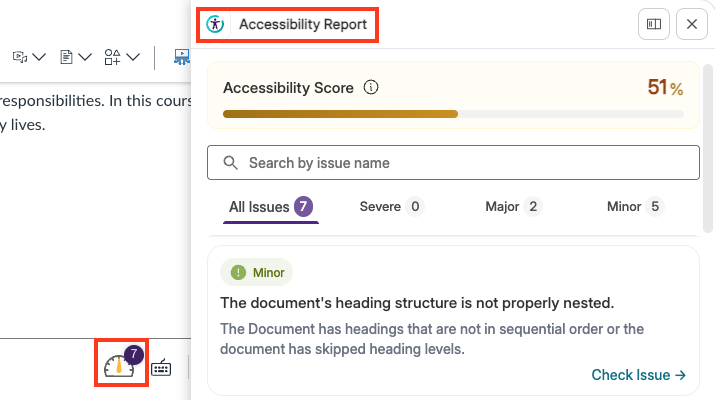
accessibility report menu showing score and the page editor icon show 7 identified issues.

Panorama works best when it is used as a guide for improving accessibility throughout the course development process rather than as a final checklist before publishing. Consider the following best practices:

  • Review accessibility reports early and often while building your course.
  • Prioritize issues that have the greatest impact on student access and navigation.
  • Add meaningful alternative text to images rather than relying solely on automated suggestions.
  • Use headings to organize content and create a logical reading structure.
  • Ensure videos include accurate captions or a time-coded transcript.
  • Start with accessible source documents (Word, PowerPoint, PDF, etc.) before uploading them to Canvas.
  • Use accessibility scores as a guide for identifying potential issues, not as a measure of course quality.
  • Preview alternative formats periodically to better understand the student experience.

NOTE: Panorama can identify many accessibility issues and assist with remediation, but instructors are still responsible for reviewing content and ensuring it meets the needs of their students. For resources on making your content accessible visit: Getting Started with Accessibility.

Discover web accessibility support services and educational resources available to all faculty, staff, and students at UNCG’s Accessibility website, through the Office of Accessibility Resources and Services (OARS), or reach out to our Digital Accessibility team.

Additionally, ITS Learning Technology’s Instructional Design and Digital Accessibility teams can assist with understanding accessibility reports, prioritizing issues, identifying remediation strategies, and locating training resources.

Use any of the following links to request assistance:


Instructor Training

Group, one-on-one, or virtual sessions are available to faculty on workshops.uncg.edu. If you cannot find what you’re looking for you can request specific training or schedule a digital accessibility consultation.


Technical Support

For course-specific questions regarding YuJa Panorama you can:

ITS 6-TECH Service Desk

1400 Spring Garden Street Greensboro, NC 27412
Email: 6-TECH@uncg.edu
Technical Support: (336) 256-TECH (8324) 

YuJa Panorama Support Documentation


Privacy and Accessibility